
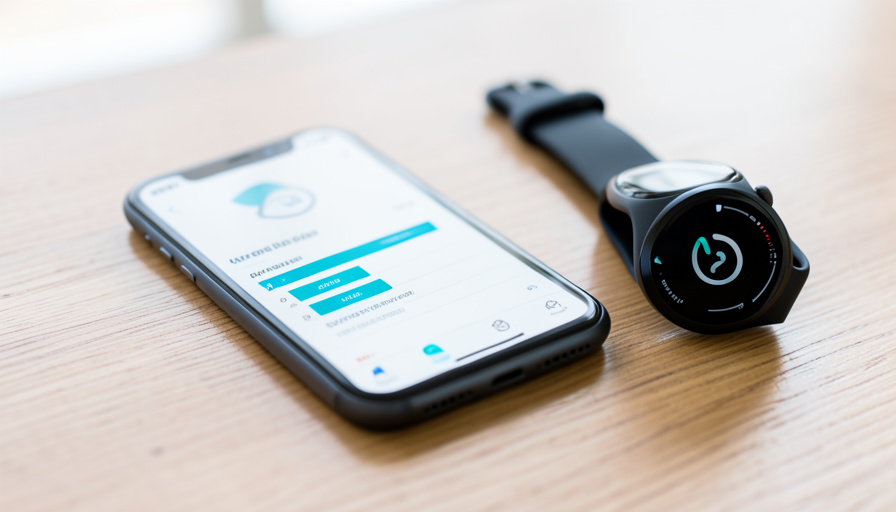
11 Fixes When Apple Health Step Counts Don’t Match
Your iPhone reports one step count, your Apple Watch reports another, and the fitness app you actually care about disagrees with both. It looks broken. Usually it is not, and the small number of things that cause a real mismatch each have a clear fix.
Step tracking feels like it should be a simple tally, but three devices measuring your movement with different sensors and different math will never land on the exact same number. Apple Health is designed to sort that out behind the scenes, and when the totals still look off it is almost always one of a short list of settings or sync issues. Here is what is actually happening and eleven ways to get your numbers to agree.
At a Glance
The most important thing to know is that Apple Health merges your iPhone and Apple Watch steps and de-duplicates them, so it does not simply add the two together. That means a difference between one device’s raw count and the Health total is expected, not a bug. Real mismatches usually come from data-source priority being set wrong, third-party apps writing redundant step data, permissions being off, a device left behind, or a sync hiccup. The fixes below walk through each, starting with the settings that control which source Health trusts and ending with the updates and restarts that clear stubborn sync problems.
The 11 fixes
- Understand that Health merges, it does not add. When you carry an iPhone and wear a Watch, Health combines and de-duplicates the overlapping steps, so comparing one device’s raw number to the Health total will always show a gap. That gap is normal.
- Set your data-source priority. In the Health app, open the Steps data and go to the data sources and access list, then put your most accurate device, usually the Apple Watch, at the top so Health favors it when sources overlap.
- Rein in third-party apps writing steps. If a fitness app also writes step data into Health, it can look like double counting. Review which apps are allowed to write steps and turn off the redundant ones so only trusted sources contribute.
- Turn on Motion and Fitness tracking. If this permission is off, your iPhone stops counting steps entirely. Enable Motion and Fitness in your privacy settings, and confirm fitness tracking is on for the Watch, so both devices are actually recording.
- Carry the device you expect to count. Leaving your iPhone on a desk while you walk means only the Watch logs those steps, and vice versa. If a source looks low, check whether you were actually carrying or wearing it.
- Connect third-party apps to Apple Health. Apps like Fitbit, Garmin, or Strava do not always share with Health by default. Open each app’s settings and enable its Apple Health integration so its data actually flows in rather than living in a separate silo.
- Enable Background App Refresh for fitness apps. Without it, an app may only update when you open it, making its totals lag behind. Turn on Background App Refresh so it syncs steps throughout the day.
- Turn off Low Power Mode. Low Power Mode throttles background activity, including health syncing, which can leave counts stale or delayed. Disable it if your steps are consistently behind.
- Check that your devices share a time zone. If your iPhone and Watch disagree on the time zone, the day can start and end at different moments, splitting steps across dates. Make sure both are set to the same, correct time zone.
- Confirm Health is syncing through iCloud. If Health data is not syncing across your devices, totals can diverge. Check that Health is enabled in your iCloud settings so the same data set reaches each device.
- Update everything, then restart. Outdated iOS, watchOS, or app versions cause sync glitches. Update all of them, then restart both the iPhone and the Watch, which clears most lingering mismatches on its own.
Main Takeaways
- Apple Health merges and de-duplicates iPhone and Watch steps, so a raw device count differing from the Health total is normal.
- Set your data-source priority so Health favors your most accurate device when sources overlap.
- Turn off redundant third-party apps writing steps to stop apparent double counting, and connect the apps you do want to share.
- Check permissions, Background App Refresh, Low Power Mode, and time zone, since any of these can skew a source.
- Confirm Health syncs through iCloud, then update and restart your devices to clear stubborn mismatches.
For more wearables and health-tech guides, browse the DelightfulBlogs Health & Fitness section, or follow our Tech desk.
Frequently Asked Questions
Why do my iPhone and Apple Watch show different step counts?
They use different sensors and algorithms and are worn or carried differently, so their raw counts naturally differ. Apple Health then merges and de-duplicates them into one total, which is why neither device matches the Health number exactly. That difference is expected.
Does Apple Health double count steps from my iPhone and Watch?
It is designed not to. Health aggregates data from your devices and adjusts to avoid double counting. Apparent double counting usually comes from a third-party app also writing step data, which you can fix by managing which apps are allowed to write steps.
How do I choose which device Apple Health uses for steps?
Open the Steps data in the Health app and go to the data sources and access list, then reorder it so your preferred device is at the top. When multiple sources overlap, Health gives priority to the source listed highest.
Why aren’t my steps syncing to Apple Health?
Common causes are Motion and Fitness permission being off, Background App Refresh disabled, Low Power Mode throttling updates, or a third-party app not connected to Health. Check those settings, confirm Health is enabled in iCloud, and update and restart your devices.
Why did my steps split across two days?
Usually a time-zone mismatch between devices, which moves the start and end of the day and divides steps across dates. Set both your iPhone and Apple Watch to the same, correct time zone so the day boundary lines up.
What This Means
Mismatched step counts look like a glitch and are mostly just three devices doing math slightly differently, with Apple Health quietly merging the results. Once you accept that the totals will never be identical, the practical work is small: set which source Health trusts, stop redundant apps from muddying the data, keep permissions and sync switched on, and update when things drift. Do that and your numbers line up as closely as they ever will, which is close enough to trust the trend, if not the last few steps.