
10 Travel App Fixes When a New Phone Shows No Trips
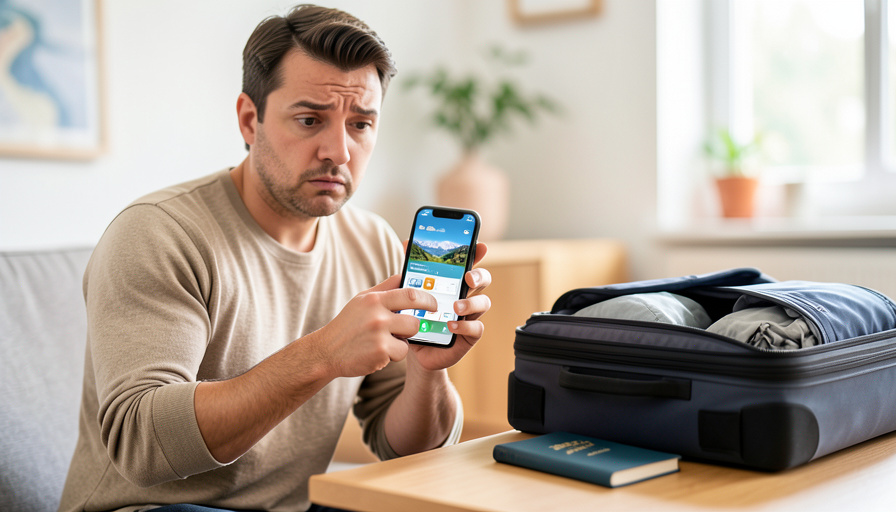
There is a small heart-stopping moment that happens on a lot of new phones: you open your travel app, expecting to see your flight and hotel, and instead it reports, cheerfully, No Trips Found. Right before a trip, that is genuinely alarming. Take a breath, because your itineraries are almost certainly safe on the app’s servers. The problem is nearly always that your new phone is not looking at the right account or connection, not that your data vanished. Here are ten settings and fixes that bring your trips back.
The reason this keeps happening is simple: restoring or setting up a phone copies your apps, but it does not reliably copy each app’s logged-in session or its links to your email and cloud account. So the app opens looking blank even though the data is intact somewhere you are not currently signed in. Work through these in order, and the trips reappear.
The Short Version
When a travel app shows No Trips Found on a new phone, the cause is almost always that you are not signed into the account holding your trips, not lost data. Check that you are actually signed in, using the same method and account as before, since email and social logins create separate accounts. Then reconnect the app to your email inbox if it imports trips that way, turn on background refresh, and pull to refresh or re-log in. Check the upcoming-versus-past filter, complete any two-factor step, update the app, and re-grant permissions. Only trips stored locally on the old phone and never synced are truly at risk.
Why a new phone loses your trips
Setting up a new phone, even from a backup, copies your apps and their settings, but it does not always restore each app’s active login or its cloud and email connections. Travel apps tie your itineraries to an account, and many also build your trip list by scanning or receiving your confirmation emails. When the migration leaves you signed out, signed into a different account, or disconnected from your inbox, the trips are still safe on the server, you are simply looking at the wrong place. Apple’s and Google’s own guides to moving to a new iPhone or a new Android phone transfer a great deal, but app-by-app sign-ins often still need doing by hand. Most fixes below are about reconnecting, not recovering.
This is general troubleshooting, and exact steps vary by app and phone. If your trips were stored only on your old device and never synced to an account, check that phone before wiping it, and contact the app’s support with your confirmation numbers if trips will not reappear.
The 10 fixes to try
- Confirm you are actually signed in. After a restore, apps often open in a signed-out or guest state that shows no trips. Open the account or profile section and check that you are logged in, and if it just shows a sign-in button, that is your answer, so log in and let the trips load.
- Use the same account you used before. If you have more than one email or account, make sure you signed into the exact one that holds your trips. Logging into a different account, even by accident, shows an empty trip list because the itineraries live under the other one.
- Match your original sign-in method. Signing in with Apple, Google, or a plain email and password can each create a separate account. If you originally used “Sign in with Google” but now used email, you may have opened a different, empty account, so switch back to your original method.
- Reconnect your email inbox. Apps that build your trip list from confirmation emails need access to that inbox, and the connection often does not survive the move. Re-link your email in the app’s settings, or re-forward your confirmations to its trip address, and the trips repopulate.
- Turn on background app refresh and sync. If syncing or background refresh is off for the app, it may not pull your latest trips. Enable background app refresh in your phone’s settings for that app, then open it and let it sync, which often fills in an apparently empty list.
- Check the upcoming-versus-past filter. Some apps default to a view, and “No Trips Found” can simply mean no trips match the current filter, such as upcoming only when yours are in the past, or the reverse. Switch the trip filter or date range to make sure you are not hiding your own trips.
- Finish any two-factor step. If a login was only half-completed because a verification code was skipped, the app can appear signed in yet load no data. Sign out fully, sign back in, and complete the two-factor prompt so the account authenticates properly and the trips sync.
- Update the app, then re-log in. An outdated version carried over from a backup can misbehave after a phone change. Update the app from the store, and if trips still do not show, sign out and back in on the current version so it establishes a fresh, correct session.
- Re-grant the permissions it needs. A new phone may not have re-granted permissions like notifications or network access that the app relies on to sync. Check the app’s permissions in your phone settings and enable what it asks for, then refresh.
- Look for trips saved only on the old phone. Manually added trips that were never synced to your account can live only on the old device. If a specific trip is missing while others returned, check your old phone if you still have it, and re-add or forward that itinerary to restore it.
How to avoid this next time you switch phones
A little prep before you migrate saves the morning-of-flight scare. Before you retire your old phone, make sure every travel app has synced its trips to your account, and note which sign-in method and email you used for each one, since that is exactly what trips up people later. On the new phone, sign into each travel app deliberately, using the same method and account, rather than assuming the restore handled it, and reconnect your email inbox where the app imports trips that way. Keep your confirmation emails, since they are the ultimate backup, and consider adding your most important trip to a second app or your calendar as insurance. Do that, and switching phones stops being a gamble with your itinerary.
Main Takeaways
- No Trips Found on a new phone almost always means a sign-in or connection problem, not lost data.
- Confirm you are signed in, using the same account and method as before, since email and social logins create separate accounts.
- Reconnect your email inbox for apps that import trips, and turn on background refresh, then pull to refresh.
- Check the upcoming-versus-past filter, finish two-factor, update the app, and re-grant permissions.
- Only trips stored locally on the old phone and never synced are truly at risk, so check the old device before wiping it.
For more travel-tech and app guides, browse the DelightfulBlogs Travel section, or see our guide to fixing airline app login errors.
Frequently Asked Questions
Did I lose my trips when I switched phones?
Almost certainly not. Travel apps store your itineraries on their servers tied to your account, so a new phone showing No Trips Found usually means you are not signed into the right account or connection, not that the data is gone. Sign into the same account and method you used before, reconnect your email if the app imports trips that way, and the trips should reappear.
Why does my travel app show No Trips Found after a restore?
Because restoring a phone copies apps but does not reliably restore each app’s active login or its email and cloud connections. The app opens signed out, signed into a different account, or disconnected from your inbox, so it shows an empty list even though your trips are safe on the server. Reconnecting the correct account and inbox brings them back.
How do I reconnect a travel app to my email for trip imports?
Open the app’s settings and look for an email, inbox, or import option, then re-link the email account you use for travel confirmations, granting access when prompted. Some apps instead give you a special address to forward confirmations to. Once the inbox is reconnected or your confirmations are forwarded, the app rebuilds your trip list from those emails.
I signed in but still see no trips. What now?
Check that you used the same sign-in method and account as before, since Apple, Google, and email logins can create separate accounts. Then verify the trip filter is not hiding past or upcoming trips, complete any two-factor step, update the app, and turn on background refresh. Signing out fully and back in on the updated app often forces the correct trips to load.
Can I get back a trip I added manually on my old phone?
If a manually added trip was never synced to your account, it may exist only on the old device. If you still have that phone, open the app there to find the trip and make sure it syncs, or note the details and re-add it on the new phone. This is why syncing everything before you retire an old phone matters.
The Bottom Line
A travel app announcing No Trips Found on a new phone is scary in the moment but rarely a real loss. Your itineraries are sitting safely on the app’s servers; your new phone just is not signed into the account or inbox that holds them. Confirm your login, match your original account and method, reconnect your email, and refresh, and they come back. Prepare a little before your next phone switch, by syncing everything and noting your logins, and you can set up a new device without ever seeing that alarming empty screen the morning of a flight.