
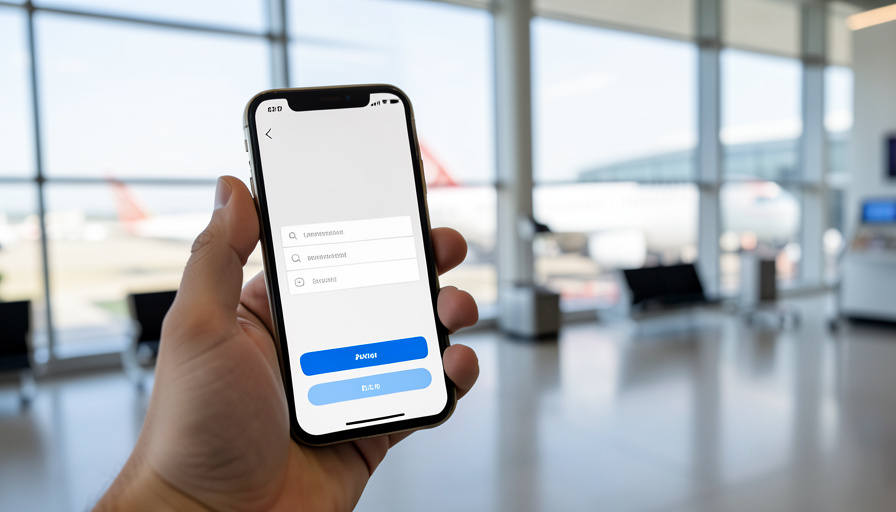
8 Airline App Login Errors You Can Fix Yourself
The app will not let you in, your gate is boarding, and the support line is a forty-minute hold. Before you sit through that, know this: the large majority of airline app login failures are things you can fix yourself in a minute or two. Here are the eight that come up most.
Airline apps are where your boarding pass, seat, and bags all live now, so being locked out right before a flight feels like an emergency. It usually is not. Login problems almost always trace to a wrong credential, an out-of-date app, a missing code, or a temporary hiccup, and each has a fast, self-serve fix. Work down this list before you reach for the phone.
In Brief
Most airline app login errors come from a short list: the wrong password, the wrong login ID, a locked account, a verification code that never arrived, an outdated app, corrupted app data, an airline server outage, or a device with the wrong time or a VPN. The fixes are equally simple, reset your password, try your other login ID, update or reinstall the app, check your spam and contact details for the code, and correct your clock or disable your VPN. Only a genuine outage really needs waiting, and even then the airline’s website is often the faster way in.
The 8 login errors and how to fix each
- The password is wrong, often because autofill saved an old one. Type it manually, check that caps lock is off, and if it still fails, use the reset link. A password manager quietly filling a stale password is one of the most common causes.
- You are using the wrong login ID. Some airline apps want your email, others your frequent-flyer number or a username. If one is rejected, try the other, since it is easy to forget which identifier you registered with.
- Your account is locked from too many attempts. After several failed logins, airlines temporarily lock the account. The quickest way back in is to reset your password, which also unlocks it, rather than hammering the login and extending the lockout.
- The verification code never arrives. If a two-step code by text or email does not show up, check your spam folder, confirm the phone number and email on file are current, and request a resend. Outdated contact details are a frequent reason codes go missing.
- The app is out of date. An old version can fail to authenticate against the airline’s current system. Update the app from your store, reopen it, and try again before assuming your credentials are the problem.
- The app’s data is corrupted. If nothing works despite correct details, clear the app’s cache in your phone settings, or delete and reinstall the app, then sign in fresh. This clears a bad stored session that keeps rejecting you.
- The airline’s servers are down. Sometimes it genuinely is not you. Check a status or outage page, and if the app is having a wider problem, wait it out or use the airline’s website, which often stays up when the app struggles.
- Your device time is wrong or a VPN is on. An incorrect clock or a VPN routing you through another region can break both logins and verification codes. Set your phone’s time to automatic and turn off any VPN, then log in normally.
When it really is the airline’s problem
Occasionally you will run the whole list and nothing works, and that is the sign it is on the airline’s side. A widespread outage, a system migration, or maintenance can take the app down for everyone at once, and no amount of resetting on your end will fix it. In that case, stop troubleshooting and switch tactics: try the airline’s website, which frequently keeps working when the app does not, and check the airline’s social accounts or a status tracker to confirm it is a known issue. If you are at the airport and truly cannot get your pass, a kiosk or the counter can reprint it, so a broken app never actually strands you.
Main Takeaways
- Most airline app login failures are wrong credentials, an outdated app, a missing code, or a temporary outage, all self-fixable.
- Reset your password to unlock a locked account, and try your other login ID if one identifier is rejected.
- For a missing verification code, check spam and confirm your phone and email on file are current.
- Update or reinstall the app, and correct your device time or disable a VPN, before assuming your login is wrong.
- A genuine outage needs the website or a wait, and a kiosk or counter can always reprint a boarding pass.
For more air-travel tips, browse the DelightfulBlogs Travel section, or see our guide to airline app boarding-pass glitches.
Frequently Asked Questions
Why won’t my airline app accept my password?
Most often autofill saved an old password. Type it manually and check caps lock, and if it still fails, use the reset link. Confirm you are also using the correct login ID, since some apps want your email and others your frequent-flyer number.
My airline account is locked. How do I unlock it?
Airlines lock accounts after too many failed attempts. The fastest fix is to reset your password, which unlocks the account at the same time. Avoid repeatedly trying to log in, since that can extend the lockout period.
The verification code isn’t arriving. What should I do?
Check your spam or junk folder, confirm the phone number and email on file are current, and request a new code. Outdated contact details are a common reason codes fail to arrive, so update them if needed and try again.
Is the problem my phone or the airline?
If updating the app, resetting your password, and clearing the cache all fail, it is likely an airline-side outage. Check a status page or the airline’s social accounts, and try logging in on the airline’s website, which often keeps working when the app is down.
Can a broken app stop me from flying?
No. If you cannot access your boarding pass through the app, a self-service kiosk or the check-in counter can reprint it. Your reservation is not tied to the app working, so a login problem is an inconvenience rather than a barrier to boarding.
What To Do Next
Run the quick loop before you ever dial support: retype the password, try your other login ID, reset if you are locked, update the app, and check your time and VPN. Nine times out of ten one of those gets you in. If none does, treat it as an outage, jump to the website, and remember the counter can always hand you a paper pass. The forty-minute hold is almost never the answer, and now you have the checklist that usually beats it.