
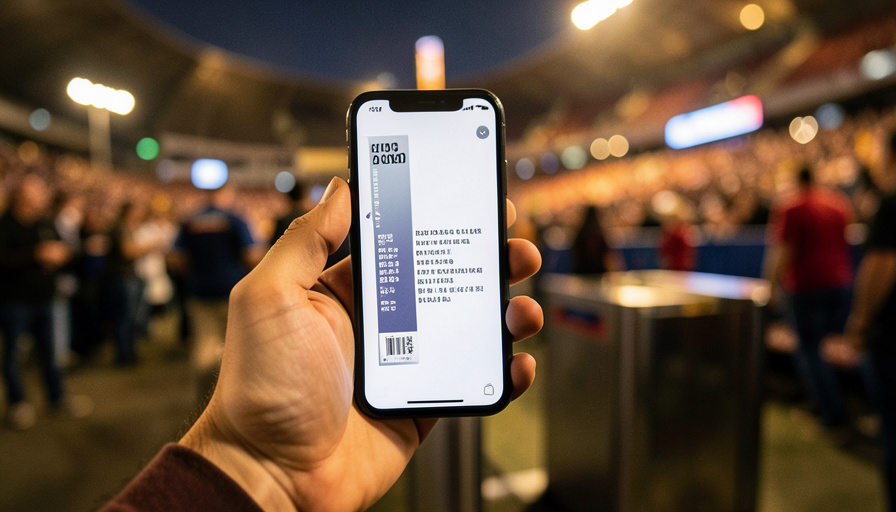
Ticket Says ‘Accepted’ but No Barcode? Here’s the Fix
You accepted the transfer, the screen says “Accepted,” and there is no barcode to be found. The night before a game or a show, that is a small heart attack. It is almost always nothing, and here is why, plus how to actually get through the gate.
Mobile tickets changed the entry process for the better and added one very specific new panic: the transferred ticket that confirms as accepted but refuses to show a scannable code. People assume the transfer failed, or that they have been scammed, or that they will be arguing with a gate attendant. In the vast majority of cases none of that is true. The barcode is missing on purpose, and knowing that turns a stressful evening into a non-event.
Bottom Line First
If a transferred ticket says “Accepted” but shows no barcode, it is almost certainly a SafeTix ticket, and that is completely normal. SafeTix uses an encrypted, constantly refreshing barcode, or a tap-to-enter NFC pass, instead of a static image, so it deliberately does not display a fixed barcode you can screenshot. To use it, open the ticket in the official app or team app rather than a screenshot, make sure you are logged into the account that accepted the transfer, and add it to your phone’s wallet if offered. The animated or tap-to-enter pass will scan at the gate even when no traditional barcode is visible.
Why there is no barcode
The missing barcode is a security feature, not a bug. Most major venues now use SafeTix, an encrypted digital ticket that replaces the old static barcode with one that constantly refreshes, or with a tap-to-enter pass that uses NFC, the same short-range technology as contactless payments. The whole point is that a screenshot or a printout cannot be copied and resold, because a frozen image of the code is useless. So when you go looking for a clean barcode to screenshot and find nothing, the system is doing exactly what it is meant to. In Apple Wallet, one of these can even appear as a tap-to-enter pass with no visible barcode at all.

How to actually display and use it
Getting the ticket ready comes down to a short checklist, best done at home rather than in the entry line:
- Open the official app, whether that is Ticketmaster or your team’s or venue’s own app, and view the ticket there rather than relying on an email or a screenshot.
- Confirm you are signed into the correct account, the one that accepted the transfer, since the ticket lives with that account and not the one it came from.
- Tap the option to view the ticket or barcode, then use the add-to-wallet button if it is offered. On some pages that button only appears when you rotate the phone to landscape.
- Update the app to the latest version if the ticket looks stuck or blank, since an outdated app is a common cause of display problems.
- At the gate, hold up the animated pass, or tap your phone on the reader for an NFC pass, and let it scan even though there is no fixed barcode to line up.
Do not bother trying to screenshot the code. A refreshing SafeTix barcode will not work as a still image, which is the entire idea.
When it is actually worth worrying
A genuine problem is rarer, but there are a couple of real ones to rule out. The most common is being logged into the wrong account, so the ticket you accepted is sitting in a different profile than the one you are checking. Double-check the email address on the account. Occasionally a transfer is only partially completed, so the sender should confirm on their end that it shows as claimed. And if the event uses a plain static barcode rather than SafeTix and it still will not appear, updating the app or reopening the ticket usually resolves it. If none of that works, the venue box office can look up your ticket with your ID and order details, which is the reliable backstop.
Key Takeaways
- A transferred ticket that says “Accepted” with no barcode is almost always a normal SafeTix ticket.
- SafeTix uses a refreshing encrypted barcode or a tap-to-enter NFC pass, so it deliberately shows no static, screenshot-able code.
- View the ticket in the official app, not a screenshot, and make sure you are on the account that accepted the transfer.
- Add it to your phone wallet if offered, and update the app if the ticket looks blank or stuck.
- If it truly will not appear, confirm the transfer was fully claimed, or have the box office look it up with your ID.
For more live-event and ticketing tips, browse the DelightfulBlogs Sports section, or follow our News desk.
Frequently Asked Questions
Why does my transferred ticket have no barcode?
Because it is almost certainly a SafeTix ticket, which uses an encrypted, refreshing barcode or a tap-to-enter NFC pass instead of a static image. It intentionally does not show a fixed barcode you can screenshot, as a measure against copying and resale. The ticket still scans at the gate.
Will a ticket with no visible barcode still scan at the gate?
Yes. SafeTix passes scan using their animated code or NFC tap-to-enter, even when no traditional barcode is displayed. Hold up the pass in the app or tap your phone on the reader, and it works normally.
Can I screenshot my SafeTix ticket?
No. A SafeTix barcode constantly refreshes, so a screenshot captures a frozen, invalid image that will not scan. Always present the live ticket from the official app or your phone’s wallet rather than a saved picture.
I accepted the transfer but can’t find the ticket. What now?
Check that you are logged into the correct account, the one whose email accepted the transfer, since that is where the ticket lives. If it is still missing, ask the sender to confirm the transfer shows as claimed, and update the official app before reopening the ticket.
How do I add a SafeTix ticket to my wallet?
Open the ticket in the official app and look for an add-to-wallet button after tapping to view the ticket or barcode. If you do not see it, rotate your phone to landscape, since on some pages the button only appears in that orientation.
The Bottom Line
The no-barcode ticket is one of those modern problems that feels like a disaster and is really just a feature you had not met yet. The system hid the barcode on purpose, to stop the exact copying and reselling that used to plague paper and static tickets. Once you know that, the fix is calm and mechanical: use the official app, be on the right account, add it to your wallet, and tap or show the live pass at the gate. Sort it out the night before, and the only thing waiting for you at the entrance is the event itself.