
12 Spreadsheet Formulas to Catch Subscription Price Hikes
Subscriptions are designed to be forgotten. The price creeps up a dollar or two, the annual plan renews on a date you never noted, and the ad-free tier you signed up for quietly becomes ad-supported unless you pay more. A simple spreadsheet beats all of it, if you give it the right formulas. Here are twelve you can paste straight into Google Sheets or Excel to catch a price hike or a renewal before it hits your card, not after.
None of these are complicated. They lean on a handful of everyday functions, and together they turn a plain list of subscriptions into something that watches itself and warns you. First set up your columns so the formulas line up, then add the ones you want. The single most valuable one is the price-change detector, because it turns a stealth increase into a cell that lights up.
The Short Version
Build a sheet with columns for the service, current price, billing cycle, renewal date, and, importantly, a “last recorded price” column you update at each check. Then add formulas that normalize monthly and annual costs so they are comparable, count down to each renewal, flag anything renewing within a week, and compare the current price to the last one you recorded so a hike shows up instantly. Round it out with a percent-change figure, a free-trial alert, an auto-rolling renewal date, running monthly and annual totals, and a count of what renews this month. Paste them in, turn on a little conditional formatting, and the sheet does the watching for you.
Set up your sheet first: the columns these formulas expect
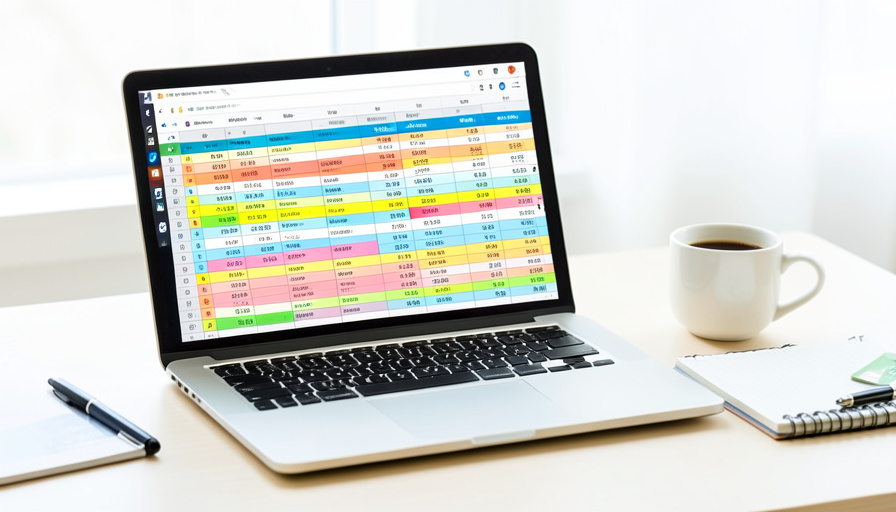
So the formulas below make sense, use this simple layout, with the first subscription on row 2. Column A is the service name, B is a note or plan name, C is the current price, D is the billing cycle typed as either Monthly or Annual, E is the renewal or next-bill date, F is the last recorded price (what it was the last time you checked), and G is a free-trial end date if there is one. Columns H and I hold the first two formulas below. The one column people skip is F, and it is the key to the whole thing: by storing what the price was last time, the sheet can tell you the moment it changes. Everything else builds on that.
The 12 formulas
- Monthly-equivalent cost, in column H, so annual and monthly plans compare fairly:
=IF(D2="Annual", C2/12, C2) - True annual cost, in column I, to see what each service really costs per year:
=IF(D2="Monthly", C2*12, C2) - Days until the next bill, a plain countdown to the renewal date:
=E2-TODAY() - A “renewing soon” flag that triggers within seven days:
=IF(AND(E2-TODAY()>=0, E2-TODAY()<=7), "Renewing soon", "") - The price-change detector, the heart of the sheet, comparing the current price to the last one you recorded:
=IF(C2<>F2, "CHANGED", "") - Direction and amount of the change, so you see up or down and by how much:
=IF(C2>F2, "Up "&TEXT(C2-F2,"$0.00"), IF(C2<F2, "Down "&TEXT(F2-C2,"$0.00"), "Same")) - Percent change since the last check, formatted as a percentage:
=IFERROR((C2-F2)/F2, "") - A free-trial alert that warns you three days before it converts:
=IF(AND(G2<>"", G2-TODAY()<=3, G2-TODAY()>=0), "Trial ends soon", "") - An auto-rolling renewal date that advances once the date passes, using EDATE:
=IF(E2<TODAY(), EDATE(E2, IF(D2="Annual", 12, 1)), E2) - Total monthly spend across every subscription, summing the monthly-equivalent column:
=SUM(H2:H100) - Total annual spend, summing the yearly-cost column:
=SUM(I2:I100) - A count of everything renewing this calendar month, using EOMONTH:
=COUNTIFS(E:E, ">="&TODAY(), E:E, "<="&EOMONTH(TODAY(),0))

How to make it actually warn you
Formulas fill cells, but a warning you have to hunt for is a warning you will miss, so add two finishing touches. First, use conditional formatting to color the flag columns: set the price-change column to turn red when it reads CHANGED, and the renewing-soon and trial-alert columns to highlight when they are not blank. Now a hike or an upcoming renewal is impossible to overlook. Second, build the habit that powers formula five: each time you review the sheet, before you update the current price, note whether the change column lit up, then copy the current price into the last-recorded column so it is ready to catch the next move. If you use Google Sheets and want a nudge without opening it, you can add a simple scheduled script or a reminder that emails you when anything is renewing soon, but even without that, the colored flags do most of the work at a glance.
Main Takeaways
- The most valuable formula compares the current price to a “last recorded price” column, so a stealth hike shows up as a flagged cell.
- Normalize monthly and annual costs with a simple IF formula so every subscription is comparable at a glance.
- Countdown and “renewing soon” formulas surface upcoming bills, and a free-trial alert warns you before a trial converts.
- EDATE auto-rolls renewal dates forward, and EOMONTH plus COUNTIFS tells you how many bills land this month.
- Add conditional formatting to color the flags, and update the last-recorded price at each check, so the sheet warns you instead of you remembering to look.
For more money and organization tips, browse the DelightfulBlogs Lifestyle section, or follow our Finance desk.
Frequently Asked Questions
Do these formulas work in both Google Sheets and Excel?
Yes. Every function used here, including IF, AND, TODAY, EDATE, EOMONTH, COUNTIFS, IFERROR, and TEXT, exists in both Google Sheets and Excel with the same syntax. Paste them into either one, adjusting the row and column references to match your layout, and they behave identically.
How does the sheet actually catch a price increase?
Through the last-recorded-price column. Each time you review the sheet you store the current price in that column, so the next time a service changes its price, the comparison formula sees that the new price no longer matches the stored one and flags the row as changed. Without that stored value, the sheet has nothing to compare against.
Why normalize monthly and annual costs?
Because a cheap-looking monthly plan can cost more per year than a pricier annual one, and you cannot compare them side by side until they are in the same unit. The monthly-equivalent and true-annual formulas convert everything so you can rank subscriptions by real cost and total them accurately.
Can the spreadsheet remind me automatically?
Conditional formatting gives you visible flags whenever you open the sheet, which catches most things. For an active reminder, Google Sheets can run a short scheduled script that emails you when the renewing-soon column is not empty. That is optional, though, and the colored flags plus a weekly glance handle the job for most people.
What is the “last recorded price” column for?
It stores the price from your previous check so the sheet has a baseline to compare against. It is the single most important column here, because the price-change detector depends on it. Update it each time you review your subscriptions, right after you have noted whether anything changed, so it is ready to catch the next increase.
The Bottom Line
Subscription creep works because no one is watching each individual charge, and companies count on that. A spreadsheet flips the arrangement: for the cost of setting up a few columns and pasting in these formulas, you get a tracker that flags a price hike the moment it appears, warns you before a renewal or a trial converts, and shows you exactly what your subscriptions cost per month and per year. Build it once, keep the last-recorded price current, and let the colored cells do the remembering, so the next stealth increase meets a sheet that is paying attention even when you are not.