
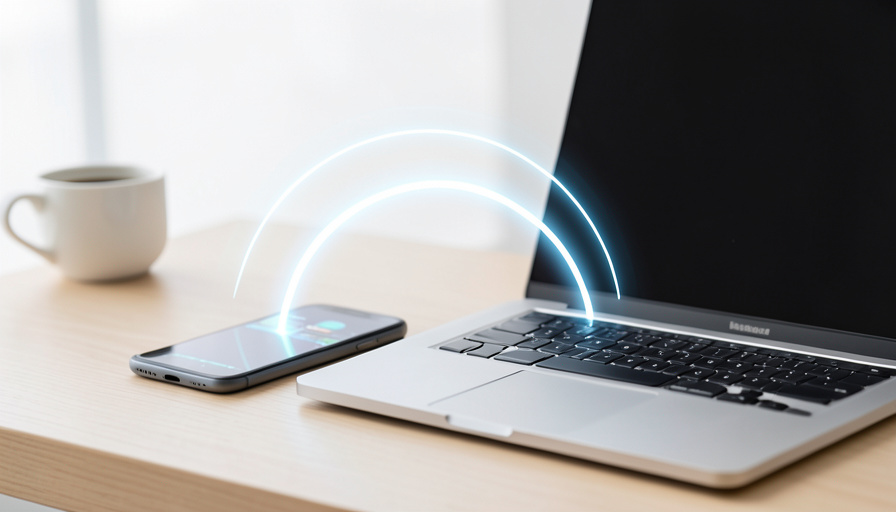
9 AirDrop Alternatives for Windows and Android File Sharing
AirDrop is the one Apple feature Windows and Android users genuinely miss: point two devices at each other and a file just moves, no cloud link, no email to yourself, no cable. The mixed-device world does have answers, and several of them are free, offline, and work across every platform you own. Here are nine, with the setup checks that decide whether they work on the first try.
Most of these send files directly between devices over your local Wi-Fi, which keeps transfers fast and private and works even when the internet is down. A couple also work over the web when the devices are apart. The differences that matter for a Windows-plus-Android household are which platforms each one covers, whether it needs an install on both ends, and how it handles the discovery and firewall settings that trip up first-time transfers.
The Short Version
Quick Share is the closest AirDrop equivalent for Android, and it now has a Windows app, so it is the first thing to try. LocalSend is the best free, open-source, no-account option and covers every platform, while PairDrop needs no install at all because it runs in a browser. Send Anywhere works both on your network and across the internet with a simple key, and KDE Connect links an Android phone to a Windows PC for transfers plus notifications. Microsoft’s own Phone Link is built into Windows for Android users, and Warpinator, Feem, and Syncthing round out the list for local transfers and ongoing sync. Before you blame the app, check that both devices are on the same Wi-Fi and that the firewall allowed it.
How I picked these, and what to check before you send
Every tool here works across Windows and Android, which was the whole point, and most add other platforms too. I favored options that are free or have a usable free tier, keep transfers local when possible, and do not force a cloud account. Before you decide any of them is broken, run three checks. First, put both devices on the same Wi-Fi network, since local transfer will not find a device on a different network or on a guest network that blocks device-to-device traffic. Second, allow the app through your PC’s firewall when Windows asks, because a blocked prompt is the most common reason a phone cannot see the computer. Third, set the receiving device to be visible or discoverable, as many of these hide from strangers by default and will not appear until you open them up.
Quick Share
Quick Share is the natural starting point, because it is Google and Samsung’s merged sharing feature and behaves the most like AirDrop on Android. It sends directly between nearby devices, and there is now a Quick Share app for Windows that lets a PC send to and receive from Android phones. The one thing to get right is visibility: set who can share with you to everyone nearby, at least for the length of the transfer, or the sending device will not find you. For an Android-and-Windows setup, this is the first thing to try.
LocalSend
LocalSend is the best free, no-strings option, and a favorite for people who want AirDrop’s simplicity without any account. It is open-source and runs on Windows, Android, iOS, macOS, and Linux, sending files directly over your local network with nothing stored in a cloud. Install it on both devices, open it on the same Wi-Fi, and each shows up in the other’s list. There are no file-size limits beyond your storage, and because it stays on your network, it works with the internet off. For a truly cross-platform household, this is the one to keep installed.
PairDrop
PairDrop is the answer when you do not want to install anything. It runs entirely in a web browser, so you open the same page on both devices on the same network and they pair automatically, then you drag a file to send it. As the maintained successor to Snapdrop, it is ideal for a one-off transfer, a borrowed computer, or a device you would rather not put an app on. The trade-off is that it needs the browser tab open and both devices on the same network, but for quick, install-free sharing between a phone and a PC it is hard to beat.
Send Anywhere
Send Anywhere is the pick when the two devices are not on the same network. It gives you a six-digit key or a QR code, and the other device enters it to receive, working both locally and across the internet. That makes it useful for sending to someone in another building or on mobile data, where the local-only tools cannot reach. It is cross-platform across phones and desktops, with a free tier that covers everyday transfers. Keep in mind that internet transfers route through its service, so for private files on the same network a local tool is the better choice.
KDE Connect
KDE Connect does more than move files, which is what makes it worth setting up once. It links an Android phone to a desktop, including Windows, and then lets you send files both ways, share your clipboard, see phone notifications on the PC, and use the phone as a remote. Pair the two devices once on the same network and file transfer becomes a right-click or a share-sheet tap. If you regularly move things between the same phone and computer, the ongoing link is more convenient than opening a separate sending app each time.
Microsoft Phone Link
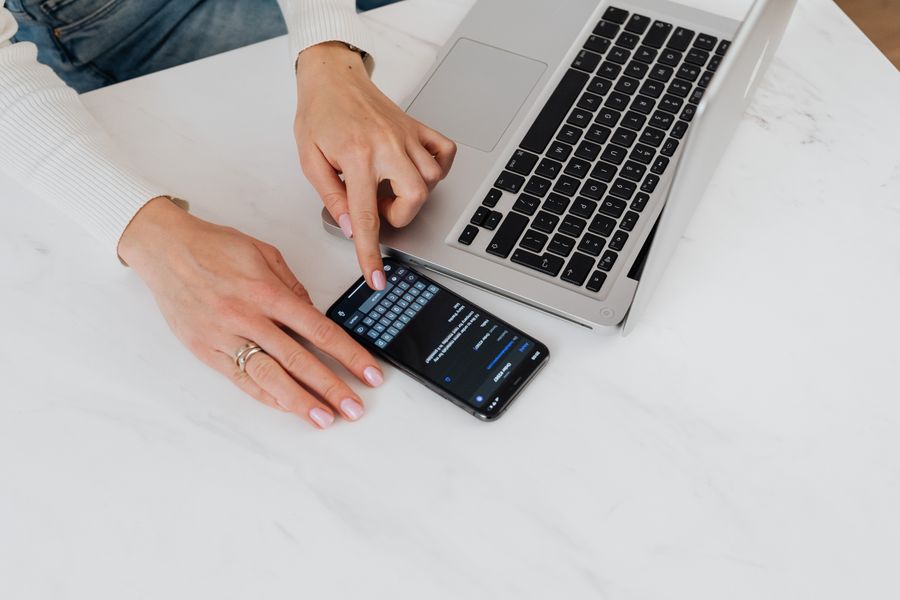
Microsoft Phone Link is already on your Windows PC, so it costs nothing to try. Built into Windows and paired with the Link to Windows app on Android, it shows your phone’s recent photos on the computer and lets you drag files across, alongside texting and calls from the desktop. It is smoothest on newer Samsung and Pixel phones, where deeper integration allows fuller file access, and more limited on others. For an Android user who mostly wants recent photos and the odd file on their Windows machine without installing anything new, it is the path of least resistance.
Warpinator, Feem, and Syncthing
Three more fill in the gaps. Warpinator, from the team behind Linux Mint, is an open-source local-network sender with an Android app, so it moves files across your Wi-Fi with no account and no size cap, handy in a Linux-and-Android mix that also includes Windows through its tools. Feem is a lightweight app that transfers over local Wi-Fi across Windows, Android, and more, staying simple and working offline. And Syncthing is the choice when you do not want one-off sends at all but continuous, private sync: point it at a folder on each device and files copy themselves whenever both are online, with nothing kept in a cloud. Between them, you can cover a quick LAN transfer, a simple app, or a set-and-forget sync.
Main Takeaways
- Quick Share is the closest AirDrop match for Android and now has a Windows app, so try it first.
- LocalSend is the best free, open-source, no-account option and covers every platform; PairDrop needs no install at all.
- Send Anywhere works across the internet with a key, while KDE Connect and Phone Link keep a phone and PC linked.
- Warpinator, Feem, and Syncthing cover local sends and ongoing folder sync without a cloud.
- If a transfer fails, check the same-Wi-Fi requirement, the PC firewall prompt, and the receiver’s visibility setting first.
For more device tips, browse the DelightfulBlogs Tech section, or see our guide to transferring digital purchases between accounts.
Frequently Asked Questions
Is there a true AirDrop equivalent for Android and Windows?
Quick Share is the closest. It sends directly between nearby devices like AirDrop, works across Android, and now has a Windows app so a PC can send and receive too. Set your visibility to everyone nearby during the transfer, since the receiving device stays hidden by default and will not appear otherwise.
Which option is best if I do not want to install anything?
PairDrop. It runs in a web browser, so you open the same page on both devices on the same Wi-Fi and they pair automatically. There is nothing to install and no account, which makes it ideal for a one-off transfer or a borrowed computer. Both devices just need the browser tab open on the same network.
Can these send files without an internet connection?
Most of them, yes. LocalSend, PairDrop, Quick Share, KDE Connect, Warpinator, and Feem transfer directly over your local Wi-Fi, so they work with the internet down as long as both devices are on the same network. Send Anywhere can also go over the internet when the devices are apart, which the local-only tools cannot do.
Why can’t my phone see my PC?
Usually one of three things. The devices are on different Wi-Fi networks, including a guest network that blocks device-to-device traffic; the PC’s firewall blocked the app when Windows asked; or the receiving device is not set to be visible. Put both on the same network, allow the app through the firewall, and set the receiver to discoverable, then retry.
Are local file-sharing apps private?
The local-only ones are quite private, because the file travels directly between your two devices over your own network and is never uploaded to a company’s servers. Tools that offer internet transfer, like Send Anywhere, route those specific transfers through their service, so for sensitive files on the same network, prefer a local option such as LocalSend.
What To Do Next
Start with Quick Share if you are on Android and Windows, since it is the nearest thing to AirDrop and the Windows app makes it two-way. Keep LocalSend installed as the free, everything-platform backup, and bookmark PairDrop for the times you cannot install anything. If you find yourself moving files between the same phone and PC every day, set up KDE Connect or Syncthing once and stop thinking about it. And whichever you choose, remember the three checks, same network, firewall allowed, receiver visible, because nine times out of ten that is the difference between a transfer that works instantly and one that never shows up.