
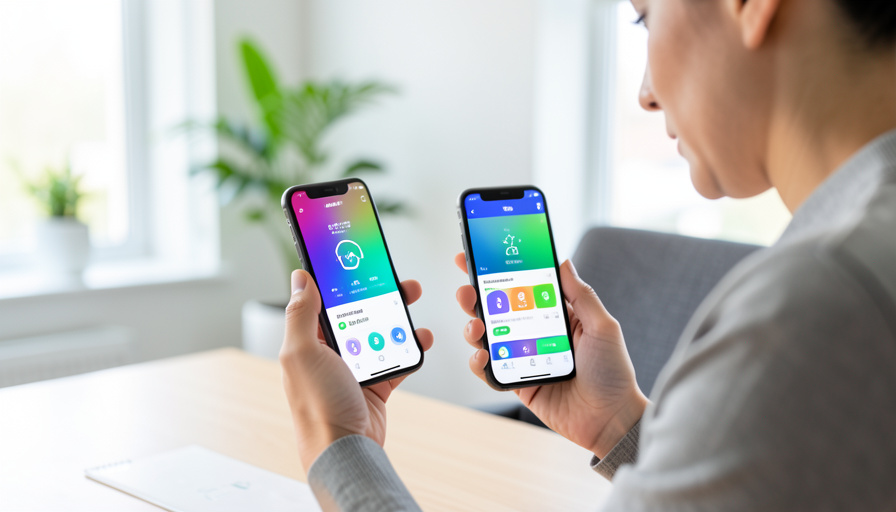
Apple Health vs Google Fit: Switching iPhone to Android
You have finally decided to switch from iPhone to Android, and then it hits you: all those years of steps, workouts, and trends live inside Apple Health, and you have no idea whether they come with you. Do you pick Google Fit instead? Does anything transfer? The good news is that this is a very solvable move, but it helps to understand what you are actually deciding. You are not really choosing Apple Health or Google Fit the way you would pick between two apps on the same phone, because Apple Health only runs on iOS and Android has its own system entirely. So here is the honest comparison, and a step-by-step way to switch without leaving your history behind.
The key realization is that these two live in separate worlds. Apple Health is the built-in hub on iPhone, while on Android the central store for health data is now Health Connect, with Google Fit acting as one app that reads from it. When you change phones, you are not flipping a switch between the two, you are exporting from one ecosystem and re-establishing yourself in the other. Once you see it that way, the decision and the migration both get much clearer.
The Quick Answer
You cannot run Apple Health on Android, so switching means moving to Android’s system, where Health Connect is the central hub and Google Fit is an app that reads from it. Before you leave your iPhone, export your Apple Health data so you keep an archive. On Android, set up Health Connect and connect your wearable and apps to it, and use a third-party bridge app if you want to import your old history, accepting that the transfer may be partial. Going forward, standardize on Health Connect and choose your everyday app, Google Fit or your wearable’s app, based on which one you actually use.
Why this is a migration, not a toggle
Apple Health and the Android system are not competitors you switch between on one device, they are the health hubs of two separate ecosystems. Apple Health is built into iOS and does not exist on Android, and it does not sync your history across to a new Android phone. On the Android side in 2026, the central store is Health Connect, the system hub that apps read from and write to, while Google Fit has become one of the apps that connects to it rather than the sole destination. So when you change phones, your data does not automatically follow, and there is no single button that merges the two. That is why a phone switch is really a migration: you export from Apple Health, set up Health Connect on Android, and rebuild your connections there. Google’s overview of how to get started with Health Connect shows where that hub lives on your new phone.
This article is general information, not medical advice, and health data from any app or device is an estimate. Back up your data before switching, do not rely on a single app as your only record, and confirm anything that matters for a medical reason with your clinician and the app maker’s current guidance.
How to switch without losing your data
- Before you switch, export your Apple Health data. While you still have the iPhone, open the Health app, tap your profile picture, and choose to export all health data, which saves a file containing your history. Apple’s guide to managing Health data on your iPhone covers where these controls are. Keep that export safe, since it is your archive no matter what else happens.
- Set up Health Connect on your new Android phone. Health Connect is the hub the rest of your apps will use, so open it and get it configured first. On newer Android it is built in, and on some phones it is a separate app to install. Establishing it before anything else gives your steps and workouts a single place to gather.
- Choose your everyday app on Android. Decide which app you will actually open day to day, whether that is Google Fit, your wearable’s own app, or another fitness app, and connect it to Health Connect. This is the real Apple Health versus Google Fit choice: not which ecosystem, but which interface you prefer on top of the Android hub.
- Move your old history with a bridge app if you want it. To bring your Apple Health export into Android, use a reputable third-party importer or sync tool that can read the export and write it into Health Connect. Know the limits first, since not every data type transfers cleanly and the process can be partial or manual, so treat imported history as a bonus rather than a guarantee.
- Reconnect your wearable and apps. Pair your watch or band with its Android app and connect that app to Health Connect, then reconnect any other fitness apps the same way. This rebuilds the flow of new data into your Android hub so that going forward, everything lands in one place.
- Verify the data flows and set source priority. Log a fresh walk or workout and check it appears in your chosen app and in Health Connect, then review the data source priority so two devices do not double count the same steps. Confirming a new entry shows up is how you know the migration succeeded, even if some old history did not come across.
- Keep the Apple Health export as a backup. Whatever transfers and whatever does not, hold onto the file you exported from your iPhone. It is a complete record you can reference later, and it means the switch never truly costs you your history, even if it now lives in an archive rather than a live app.
How to decide which to standardize on
Once you are on Android, the practical choice is which app sits on top of Health Connect as your daily hub, and a few factors decide it. Start with your wearable, since the app that pairs best with your watch or band, and writes its data most completely to Health Connect, is usually the natural center. Consider which fitness apps you already use, because whichever one you open most and that reads and writes to Health Connect cleanly will feel the smoothest as your main view. Factor in that Google has been steering users toward Health Connect as the core store, so choosing an app that works well with it, rather than one that tries to be a separate silo, keeps your data unified. And weigh how much your old history matters: if years of trends are important to you, prioritize getting the export imported and keeping the archive, whereas if a fresh start is fine, simply set up Health Connect and move forward. There is no single winner, only the setup that matches your devices and habits.
Main Takeaways
- Apple Health only runs on iOS, so switching to Android means moving to its system, where Health Connect is the hub and Google Fit reads from it.
- Export your Apple Health data before leaving the iPhone, and keep that file as a permanent archive.
- Set up Health Connect first on Android, then choose your everyday app, Google Fit or your wearable’s app, on top of it.
- Use a reputable bridge app to import old history, but expect the transfer to be partial rather than perfect.
- Reconnect your wearable and apps to Health Connect, verify new data flows, and set source priority to avoid double counting.
For more wearable and health-app guides, browse the DelightfulBlogs Health & Fitness section, or see our guide to why Apple Health and Samsung Health show different steps.
Frequently Asked Questions
Can I use Apple Health on an Android phone?
No. Apple Health is built into iOS and does not run on Android, and it does not sync its history to an Android phone. On Android, the equivalent central store is Health Connect, with apps like Google Fit reading from it. When you switch, you move to that system rather than bringing Apple Health along, which is why exporting your data first matters.
Can I transfer my Apple Health data to Google Fit or Android?
Partly. You can export your Apple Health data from the iPhone, then use a reputable third-party bridge or importer app to write it into Health Connect on Android, where Google Fit and other apps can read it. Not every data type transfers cleanly, and the process can be manual, so treat imported history as a helpful bonus and keep the original export as your reliable archive.
Is Google Fit being replaced by Health Connect?
Google has been shifting the core of Android health data to Health Connect, the system hub that apps read from and write to, with Google Fit acting as one app on top of it rather than the sole destination. For a phone switch, that means you should center your setup on Health Connect and pick whichever app, Google Fit or another, you prefer as your daily interface.
Which is better for tracking steps and workouts after switching?
Neither is universally better, since it depends on your devices. The best daily app on Android is usually the one that pairs most completely with your wearable and writes cleanly to Health Connect. What matters more than the app name is that everything feeds into Health Connect as one hub, and that you set data source priority so a phone and a watch do not double count the same activity.
What happens to my data if I switch back to iPhone later?
Going back to iPhone means the reverse migration, since Android data does not automatically flow into Apple Health either. You would export or sync from Health Connect and bring it into Apple Health, again with a bridge tool and the same partial-transfer caveats. This is exactly why keeping full exports from each side as archives is worth the small effort, so no switch ever leaves you empty-handed.
The Bottom Line
Choosing between Apple Health and Google Fit when you move from iPhone to Android is less a head-to-head and more a change of address. Apple Health is your iPhone hub, and on Android that role belongs to Health Connect, with Google Fit or your wearable’s app sitting on top as the interface you actually use. So export your Apple Health history before you leave, set up Health Connect on the new phone, connect your devices and apps to it, and bring your old data over with a bridge where you can. Do that, and switching phones stops being a threat to years of workouts and becomes just another move you handled well.